Location Marker Manager
The Location Marker manager can be accessed from the menu by selecting Tools > Location Marker Manager. It allows for the management of location markers’ positions, icons, and names.

Adding a location marker
The user can add a location marker by clicking on the Add button in the location marker manager or by using the Add Location Marker hotkey while on the map (the default is M). The Add button requires the manual input of a latitude and longitude, whereas the hotkey will place the marker at the location of the mouse on the map. Both methods will show the Edit Location Marker Dialog. When adding a new location marker, canceling the dialog will delete the location marker.
Editing a location marker
A location marker can be edited by either right clicking it on the map, or double clicking it in the Location Marker Manager. Either will open the Edit Location Marker Dialog. When editing, canceling the dialog will not apply any changes to the location marker.
Removing a location marker
A location marker can be removed by either selecting it in the Location Marker manager and pressing Remove or by pressing Delete in the Edit Location Marker Dialog.
Edit Location Marker Dialog
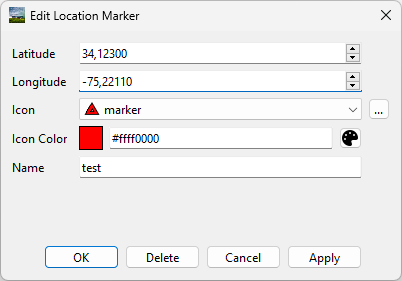
The Edit Location Marker dialog allows for editing the location, icon, and name of a location marker. The latitude and longitude of the marker are in degrees.
A custom image can be used as the location marker icon. Select a custom image using the button with three dots to the right of the Icon combo box. PNG and SVG are the only supported file formats. The size of the icon on the map is determined by the size of the image. Once there is a marker with the icon, the icon will appear in the Icon combo box.
The color of the icon is in ARGB hexadecimal format (#aarrggbb). You can also use the color picker next to it to select a color. For custom icons, it is important to know that the colors of the icon are “modulated” by the color field. This means that white will become the color, black will stay black, and other colors will be shifted towards the color. Setting the color to white will leave the icon unchanged. Specifically, the color values are multiplied together and then normalized.