Settings
Settings can be accessed from the menu by selecting File > Settings. The settings menu contains two categories, General and Palettes.

Settings can be globally restored to default with the Restore Defaults button in the lower left corner.

Individual settings can be restored to their default with the circle arrow button beside the respective setting.
Note
Most settings will require reloading the application to take effect.
General
Default Radar Site
Choose which radar site will load automatically upon opening the app. The map will also be centered over the selected radar site.
Font Sizes
Change the size of the font on map overlays.
Grid Width and Height
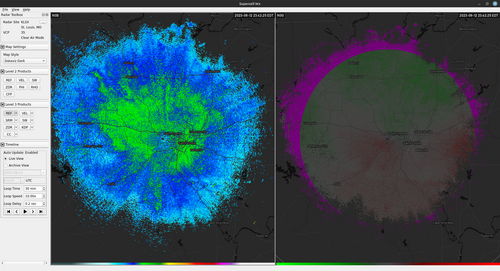
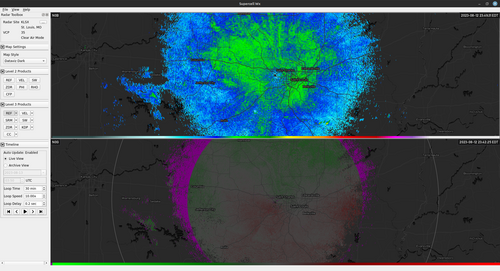
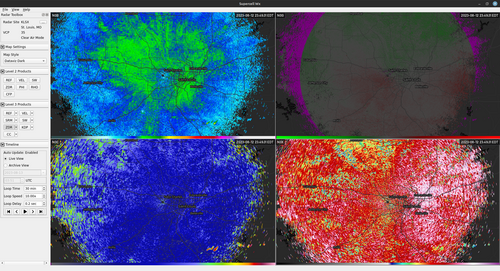
These settings allow multiple radar products to be viewed simultaneously. Changing Grid Width will create panes side by side, while Grid Height will create panes top and bottom. The maximum value for both is two.
Layout with a Grid Width of 2 and a Grid Height of 1
Layout with a Grid Width of 1 and a Grid Height of 2
Layout with a Grid Width of 2 and a Grid Height of 2
Map Provider
Select the provider for the map underlays. Currently Mapbox and MapTiler are supported.
Note
The map types available on the Map Style dropdown in the Radar Toolbox will depend on the selected map provider.
Mapbox API Key
Input API key to be used when using Mapbox as the map provider
MapTiler API Key
Input API key to be used when using MapTiler as the map provider. The available API keys can be found on the account API Keys page
Default Alert Action
Changes what happens when selecting an alert in the Alerts panel.
Go (Default) - Switch to issuing radar site and pan map to location.
View - Open Alert to view text issued from NWS.
Update Notifications Enabled
Notify the user of updates to Supercell Wx.
Debug Enabled
Enables the debug options menu.
Palettes
The map and radar display have multiple customization options, including color tables. The default color tables come from NOAA’s Weather and Climate Toolkit, but can be modified from the Palettes category in the Settings dialog. Color tables are compatible with the GRLevelX Color Table File Specification.
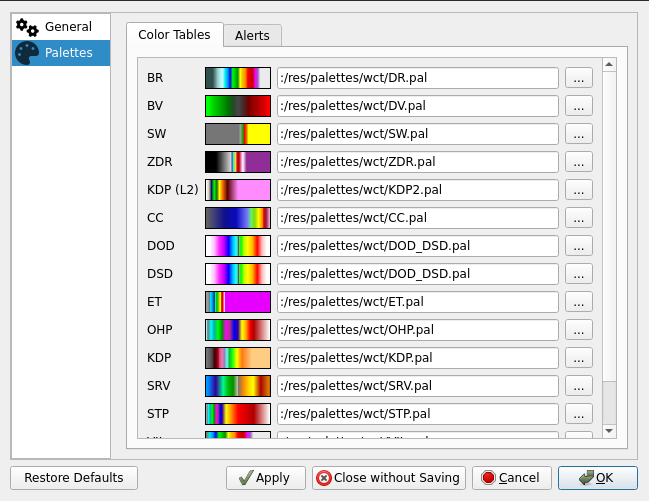
Additional color tables can be found at a number of sites, including:
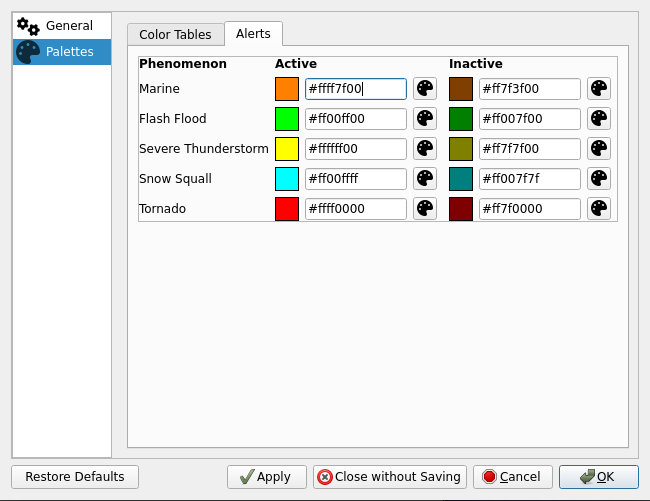
In addition to color tables, alert colors can also be modified. Use the text box to specify a color in ARGB hexadecimal format (#aarrggbb), or use the color picker to select a color.