Map Drawing
Supercell Wx can draw annotations directly on the map: freehand strokes, lines, circles, rectangles, and distance measurements. Drawings are rendered on the map for each map pane.
Opening the Draw Tools
Open the Draw toolbar from the map pane context menu (right-click the map and choose Draw). The toolbar docks on the map edge; use Pop-Out on the toolbar header to float it, or - to hide it.
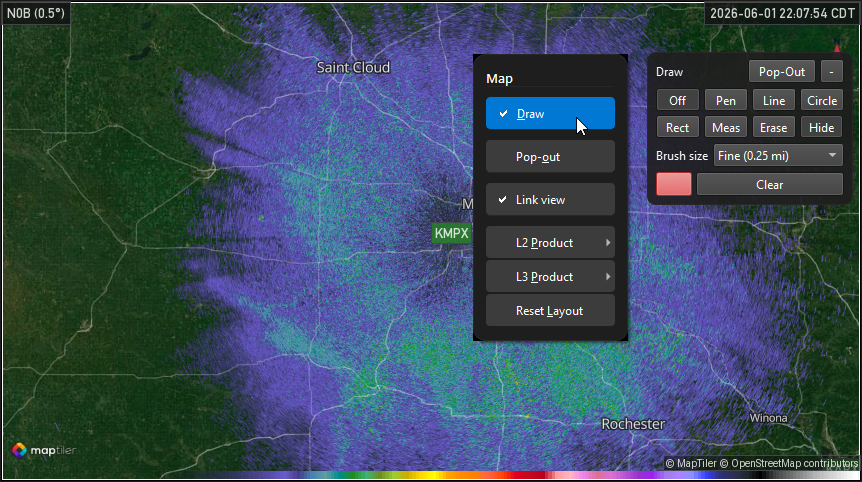
Expanded Draw panel showing tool buttons, brush size, color, and Clear.
Tools
Tool |
Description |
|---|---|
Off |
Disables the active draw tool. Map pan and zoom behave normally. |
Pen |
Freehand drawing on the map. |
Line |
Straight line between two points. |
Circle |
Circle from center and radius. |
Rect |
Axis-aligned rectangle from two corners. |
Meas |
Distance measurement between points. Each endpoint is an anchor that can be dragged to adjust the measurement. |
Erase |
Remove annotations by clicking or dragging over them. |
Hide / Show toggles visibility of all drawings on the active map without deleting them. Clear removes every annotation on that map pane.
Style
Brush size — Choose a preset width or Custom and use the slider.
Color — Opens a color picker for stroke color.
Fill shape — When enabled, filled circles and rectangles use the selected color.
Map Interaction
When a draw tool other than Off is selected:
Use the active tool with the left mouse button on the map.
Hold Ctrl and left-click drag to pan the map without switching tools.
Right-click drag still rotates the map (see Initial Setup).
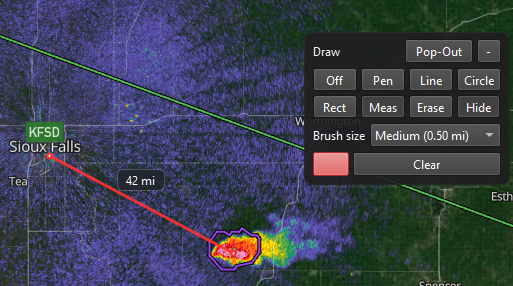
Meas tool showing a line and distance label between two points.
Persistence
Draw tool state (selected tool, brush, color, visibility, and panel layout) is saved per session. Annotations belong to the map pane where they were created.