Settings
Settings can be accessed from the menu by selecting File > Settings. The Settings menu contains four categories: General, Palettes, Audio, and Text.

Settings can be globally restored to default with the Restore Defaults button in the lower left corner.

Individual settings can be restored to their default with the circle arrow button beside the respective setting.
Note
Some settings will require reloading the application to take effect (for example Anti-Aliasing Enabled).
General
Clock Format
Toggle between a 12-hour and 24-hour clock display.
Default Alert Action
Changes what happens when selecting an alert in the Alerts panel.
Go (Default) - Switch to issuing radar site and pan map to location.
View - Open Alert to view text issued from NWS.
Default Radar Site
Choose which radar site will load automatically upon opening the application. The map will also be centered over the selected radar site.
Default Time Zone
Select between displaying the time zone of the selected radar, the user’s local time zone, or UTC.
Grid Width and Height
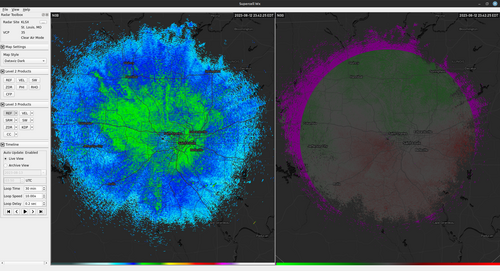
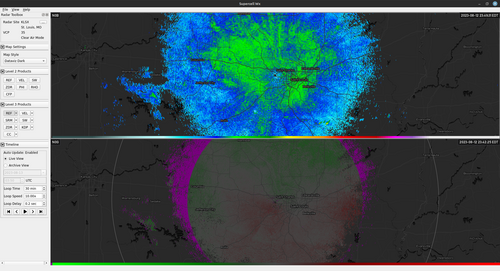
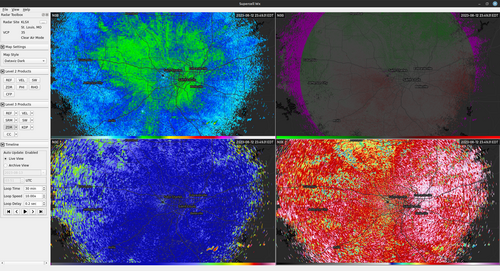
These settings allow multiple radar products to be viewed simultaneously. Changing Grid Width will create panes side by side, while Grid Height will create panes top and bottom. The maximum value for both is three (up to nine panes). See Multi-Pane Map Layout for Link view, Pop-out, and layout persistence per pane.
Layout with a Grid Width of 2 and a Grid Height of 1
Layout with a Grid Width of 1 and a Grid Height of 2
Layout with a Grid Width of 2 and a Grid Height of 2
GPS Plugin
Selected between the operating system default GPS provider and an external device supporting the NMEA protocol. When selecting NMEA, either a serial source or a network source should be selected. For the proper GPS baud rate, Supercell Wx attempts to determine the correct value based on information supplied by the operating system. Please consult your GPS manual for the proper value.
For selecting a network source, please see Qt documentation for proper format.
If using gpsd on Linux to serve GPS information to Supercell Wx, you will need to use gpspipe and socat to serve NMEA data.
Map Provider
Select the provider for the map underlays. Mapbox, MapTiler, and OpenFreeMap are supported. OpenFreeMap is free, open source, and does not require an account or API key.
Note
The map types available on the Map Style dropdown in the Radar Toolbox will depend on the selected map provider.
Mapbox API Key
Input API key to be used when using Mapbox as the map provider.
MapTiler API Key
Input API key to be used when using MapTiler as the map provider. The available API keys can be found on the account API Keys page
Custom Map URL
URL for a custom map style. This can be a map from Mapbox Studio, MapTiler Cloud, or a local/custom OpenFreeMap style JSON file.
A Mapbox map URL has the format: mapbox://styles/<username>/<id>. This is
labeled as the Style URL in Mapbox Studio.
A MapTiler map URL typically has the format:
https://api.maptiler.com/maps/<id>/style.json. This is labeled as Vector
Style in MapTiler Cloud. Note the ?key=... suffix must be removed from the
URL string.
When OpenFreeMap is the map provider, use the folder button beside Custom
Map URL to choose a .json style file on disk, or paste a URL to a style
JSON (see OpenFreeMap custom styles). On Windows and macOS,
file:/// URLs for local styles should work; use the file picker when possible.
When modifying a style, you may need to close Supercell Wx, delete the cache,
and re-open the application. On Windows, the cache is a .db file located at
%LocalAppData%\Supercell Wx\ or C:\Users\<username>\AppData\Local\Supercell Wx\.
On Linux, the cache is located at ~/.local/share/Supercell Wx/.
Note
Custom Mapbox styles are supported up to at least Mapbox GL JS 1.10.0+. Later Mapbox SDK versions may have issues, as not all newer features are currently supported by the MapLibre Style Specification. Feature parity between Mapbox and MapLibre are not one-to-one, with a divergence somewhere around or after v8.
Custom Map Layer
When using a custom map, Supercell Wx needs to know underneath which layer to render the radar product and other items. When viewing the Layer Manager, the layer name specified here (in regular expression format), and all higher priority layers become the Map Symbology. Layers underneath this become the Map Underlay.
Screen Capture Folder
Sets the default folder for a screen capture.
Screen Capture Name
Sets the default filename for a screen capture, without the file extension.
Parameters can be given to customize the filename based on the state of the map,
each enclosed within a pair of curly braces ({}).
- site:
Radar site being captured
- product:
Product name being captured
- timestamp:
Scan time for the screen capture. Can specify a C++ or fmt format string (e.g.,
{timestamp:%Y%m%dT%H%M%SZ})- lat:
Latitude of the map
- lon:
Longitude of the map
- zoom:
Zoom level of the map
- width:
Width of the map in pixels
- height:
Height of the map in pixels
Default value: {site}_{product}_{timestamp:%Y%m%dT%H%M%SZ}_{lat}_{lon}_{zoom}_{width}x{height}
Theme
The selected theme is applied when you press OK in the Settings dialog; a restart is not required.
Default will select the default Qt theme for the operating system being used. For Windows, this is the Windows Vista style, and for Linux, this is the Fusion style. This typically gives a native look-and-feel consistent with the rest of the operating system.
Fusion will select the Fusion theme. On Linux, this is already the default. On Windows, this typically enables a Dark Mode if turned on in Windows settings.
Fusion Light will select the Fusion theme and attempt to use a Light Mode palette. You can use this to override the default Light or Dark Mode selection from the Fusion theme. Note the override does not work in some desktop environments.
Fusion Dark will select the Fusion theme and attempt to use a Dark Mode palette. You can use this to override the default Light or Dark Mode selection from the Fusion theme. Note the override does not work in some desktop environments.
Fusion Custom will select the Fusion theme and allow the user to supply a custom color scheme.
Additional Fusion Themes are available for selection. These will select the Fusion theme along with a specific color scheme.
Fusion Airy
Fusion Darker
Fusion Dusk
Fusion IA Ora
Fusion Sand
Fusion Waves
Theme File
When using the Fusion Custom Theme, allows the the use of a custom color scheme. See qt6ct for sample palettes.
Warnings Provider
Supercell Wx supports multiple warnings providers:
Radar Site Threshold
When the Radar Sites map layer is displayed, the site selections are always displayed, regardless of the map zoom level. To hide the selections at wider zoom levels, increase this value. To hide the selections at narrower zoom levels, decrease this value. To keep site selections always displayed, leave this value at zero.
Anti-Aliasing Enabled
Allows enabling and disabling of anti-aliasing on the map. Disabling can improve performance, but may result in graphics with rougher edges. Changing this setting requires restarting the application.
Multi-Pane Cursor Marker Always On
The multi-pane cursor marker will display when holding down CTRL. When this
box is checked, this marker will always be displayed.
Show Map Attribution / Logo
If you have permission to hide map attribution, these selections allow you to do so. At the time of writing, Mapbox does not advertise permission to hide attribution. MapTiler allows hiding of the logo for paid subscriptions, but still requires the attribution unless a special license has been granted. OpenFreeMap styles include attribution in the map data; follow the provider’s terms when changing visibility.
Show Map Center
Display an icon at the center of the map.
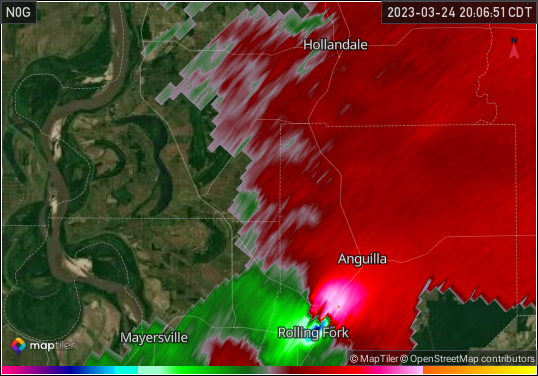
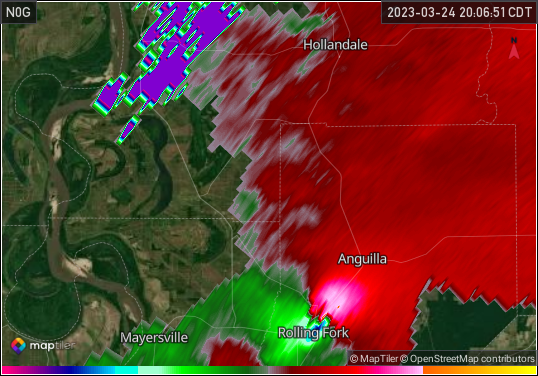
Show Range Folding when Smoothing Radar Data
When smoothing radar data, the transition between range folded values and other values can have a strong gradient. To prevent this from occurring, range folding is by default hidden while smoothing, but this can be turned back on.
Range folding hidden
Range folding displayed
Update Notifications Enabled
Notify the user of updates to Supercell Wx.
Debug Enabled
Enables the Debug options menu.
Palettes
Color Tables
The map and radar display have multiple customization options, including color tables. The default color tables come from NOAA’s Weather and Climate Toolkit, but can be modified from the Palettes category in the Settings dialog. Color tables are compatible with the GRLevelX Color Table File Specification.
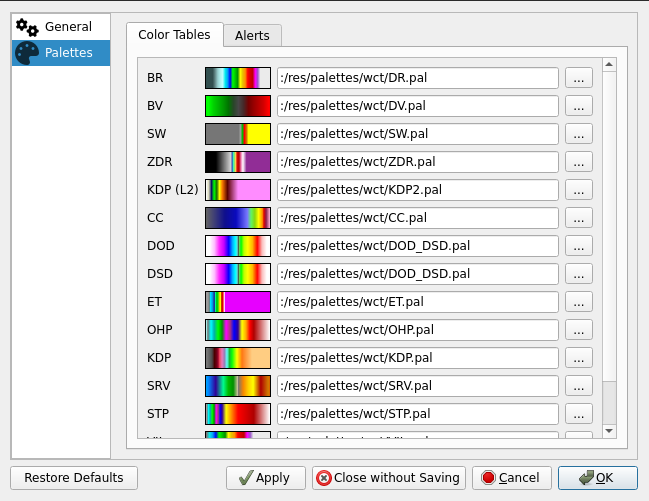
Additional color tables can be found at a number of sites, including:
Alerts
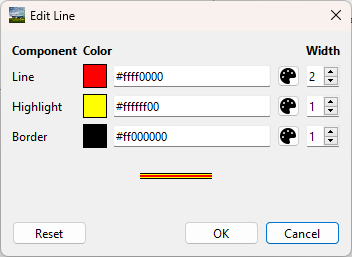
In addition to color tables, alert colors can also be modified. First, select the Phenomenon from the list. Next, select the adjacent tool button next to the Category.
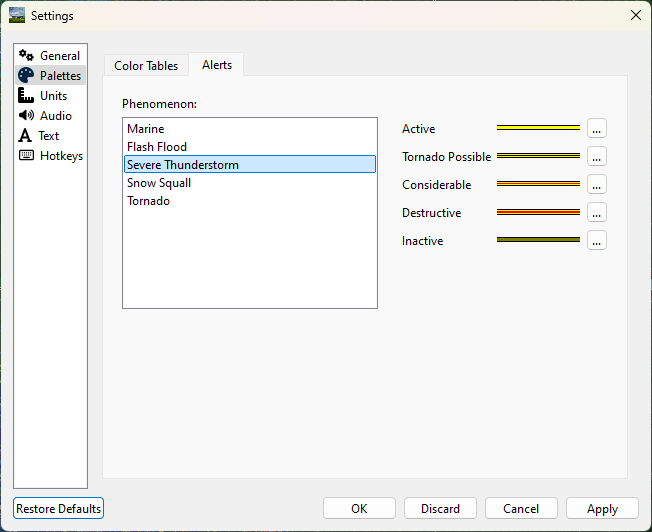
Use the text boxes to specify a colors in ARGB hexadecimal format (#aarrggbb), or use the color pickers to select a color. Adjust the width value to customize the appearance of the line further.
Radar Site Status
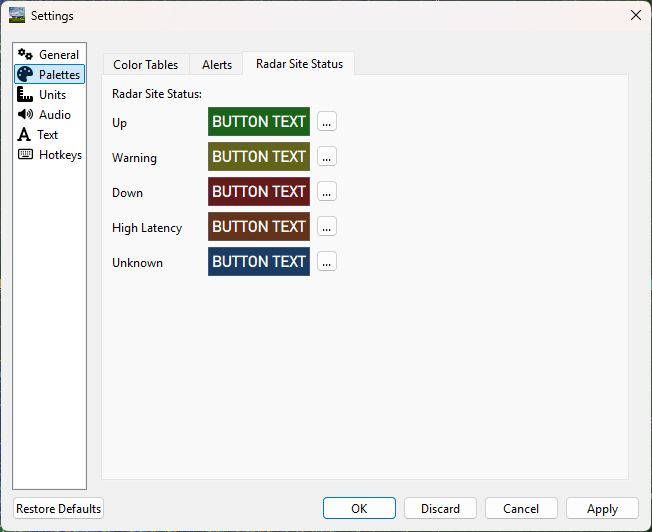
Radar sites are colored on the map based on their operational status. Status and default colors indicate:
- Up (Green):
Data received within last 5 minutes
- Warning (Yellow):
Data received more than 5 minutes ago
- Down (Red):
Data received more than 30 minutes ago
- High Latency (Orange):
Data took more than 60 seconds to arrive
- Unknown (Blue):
No radar site status available
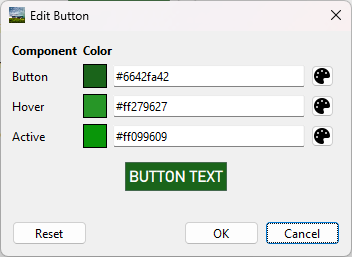
Use the text boxes to specify colors in ARGB hexadecimal format (#aarrggbb), or use the color pickers to select a color. Preview the button by hovering.
Units
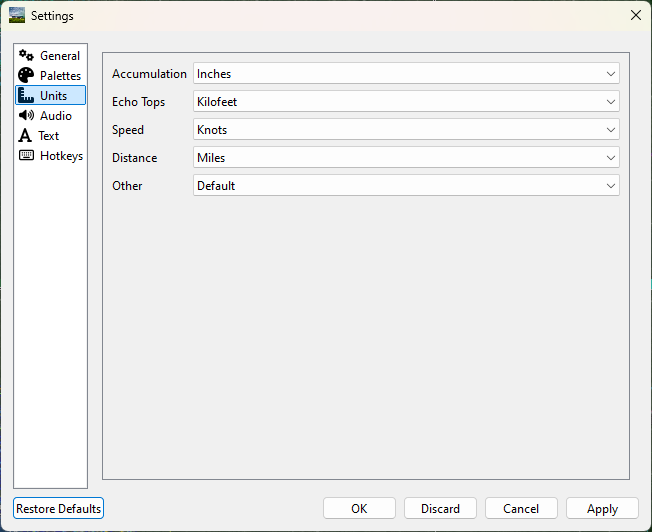
Units displayed in Supercell Wx for both radar products and dialogs can be configured from the Units tab. Standard, metric, and other units are available, as well as a User-defined selection. With User-defined selected, radar product units will be determined based on the Scale, Offset and Units fields defined in the color table for each applicable product.
Audio
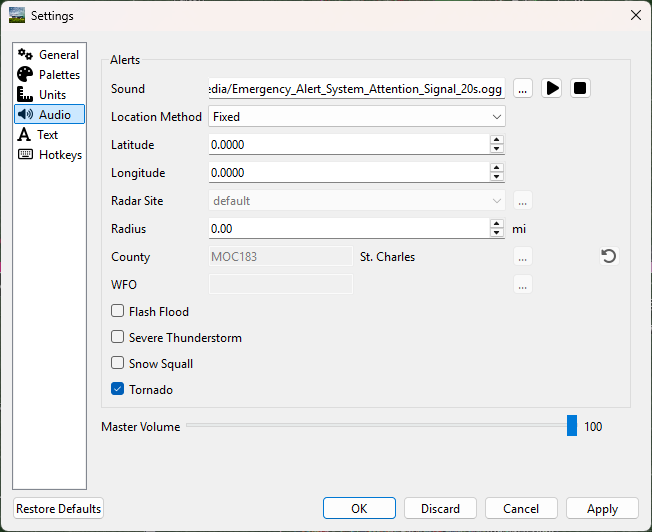
Audio notifications can be selectively enabled for alerts from the Audio tab.
Sound
By default, the two-tone Attention Signal used by the Emergency Alert System is played when a new or updated alert occurs for the selected location. An alternate audio file can be selected and sampled using the buttons to the right of the file path.
Radius
For Fixed, Track, and Radar Site location methods, an audio notification will be triggered whenever an alert is within the selected radius of the given location. Setting the radius to 0 will only trigger a notification when the location is inside the alert.
Location Method
Fixed
The Fixed location method will allow the user to manually enter a latitude and longitude for alert audio notificatons.
Track
When using the Track location method, Supercell Wx will request location information from the operating system. This may result in the operating system notifying the user that Supercell Wx is using location information.
Radar Site
The Radar Site location method will enable alerts issued within a selected radius from the selected Radar Site. In addition to selecting a radar site, two special values can be selected.
With Radar Site set to default, the default radar site will always be used when determining whether to play an alert sound.
With Radar Site set to follow, the currently selected radar site will be used when determining whether to play an alert sound.
County
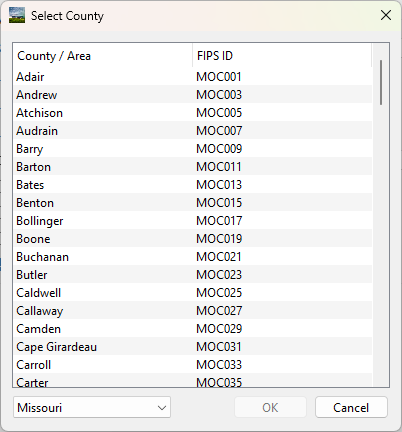
With the County location method, the user can select a county. Pressing the adjacent tool button will open a county selection dialog.
WFO
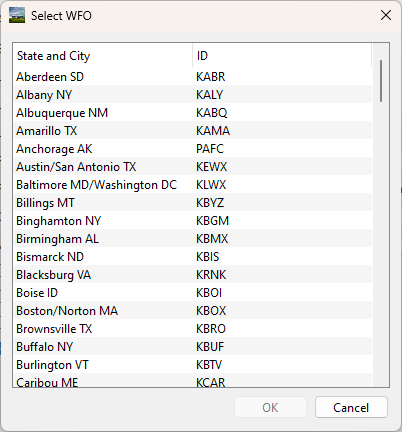
With the WFO location method, the user can select a Weather Forecast Office. Pressing the adjacent tool button will open a WFO selection dialog.
All
With the All location method, alert audio notifications will be played for any location.
Master Volume
The master volume slider allows the user to adjust the volume of all alert audio notifications.
Text
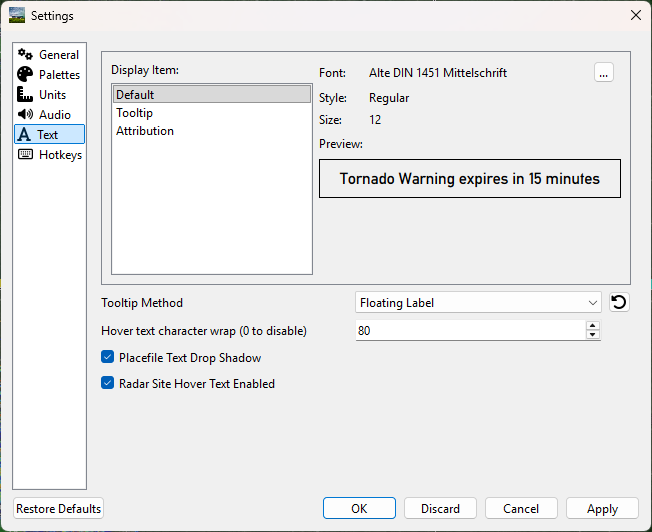
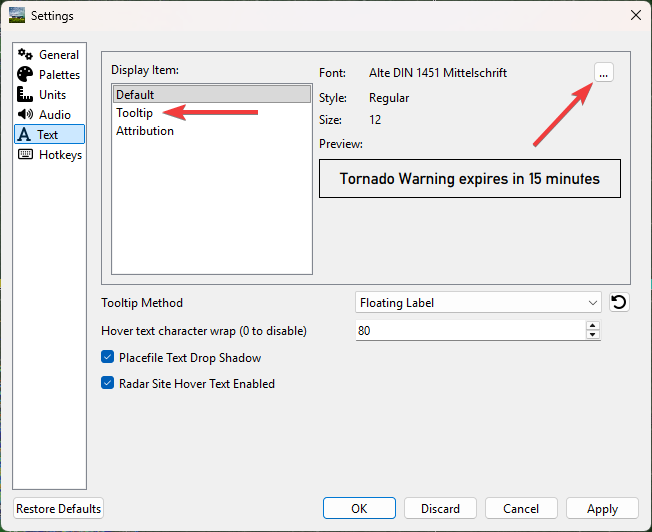
Under the text menu, the user is given several different customization options to adjust the font and style to the user’s liking.
Choosing the font
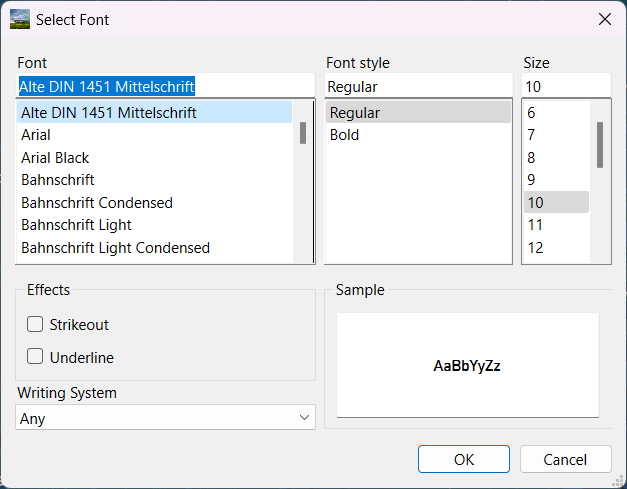
The user can select a font by choosing the desired display item, and then pressing the button with 3 dots next to the font name.
Choose the font, font style, font size, effects and writing system
Tooltip method
The tooltip method allows the user to change the method used for which pop-ups are displayed. The user is also able to change the character wrap size if the text from placefiles appear to be too long on the user’s screen.
Tooltip methods

Character wrap and placefile text drop shadow

Radar Site Hover Text Enabled
Enables or disables a description of each radar site when hovered over.
Hotkeys
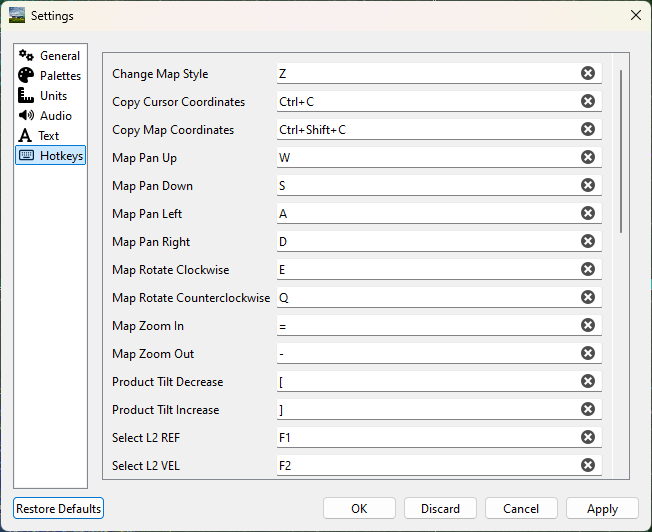
Hotkey shortcuts can be configured from the Hotkeys tab. This allows the customization and control of Supercell Wx using the keyboard for most common functions.