Multi-Pane Map Layout
Supercell Wx can show up to nine map panes (grid width and height of 1–3 each in File > Settings). Beyond the grid settings in Settings, each pane has its own radar site, products, and map view. Panes can be linked, popped out into separate windows, and restored when you restart the application.
Link View
Each map pane has a Link view option in the right-click context menu.
When Link view is on for a pane:
Radar site changes on that pane are mirrored to other panes that also have Link view enabled.
Map pan and zoom stay synchronized with the linked group.
When Link view is off, that pane keeps its own site and view. Turning Link view back on snaps the pane’s radar site to match the reference linked pane.
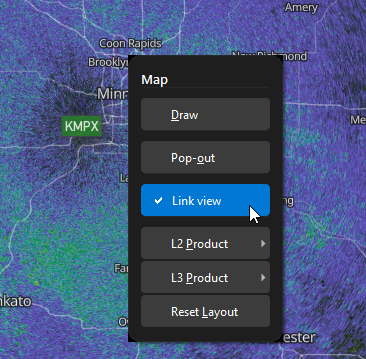
Context menu on a map pane with Link view checked and Pop-out visible.
Tip
Use Link view when comparing the same storm across products or tilts in split panes. Turn it off on a pane you want to explore independently.
Pop-Out and Dock
Pop-out (context menu) moves a grid pane into its own floating window. The main window keeps the remaining grid layout; the popped pane keeps its radar data and annotations.
To return a pane to the grid:
Right-click the map in the pop-out window and choose Dock, or
Close the pop-out window (same as Dock).
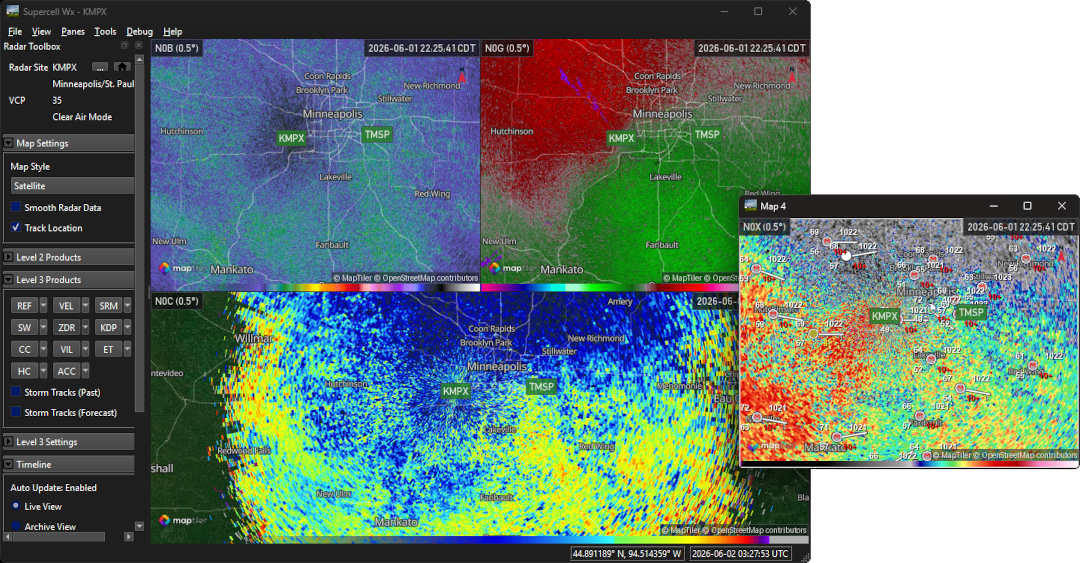
Main window with a multi-pane grid and one Pop-out map window showing the same or linked content.
Layout Persistence
Splitter sizes between panes and each pane’s Link view state are saved when you change them and restored on the next launch. Grid width and height are stored in Settings as before.
Resetting Layout
Use Panes > Reset Map Layout (or the equivalent action in the map context menu when a pane is popped out) to rebuild the grid from current Grid Width and Grid Height settings, and reset selected products to default. This does not change saved link flags, but recreates pane widgets from the configured grid dimensions.
Map Controls
Right-click drag to rotate the map only begins after the pointer moves farther than the system double-click distance. A stationary right-click does not nudge the map bearing.
Level 2 and Level 3 product submenus in the map context menu share the same styling as the root menu. Elevation selection for Level 2 products is only in the Level 2 Settings section of the Radar Toolbox, not in the context menu.